
Version: Business Enterprise Advanced
Platform: Web Android IOS
Role: User Manager Accountant Administrator
Once an employee has entered an invoice (or credit note), they can submit it for approval using the workflow defined in the supplier file.
The manager/accountant/administrator then receives a notification, and the invoice or credit note for approval on their web interface. The item is located in the ‘Invoices’ > ‘To be approved’ menu:
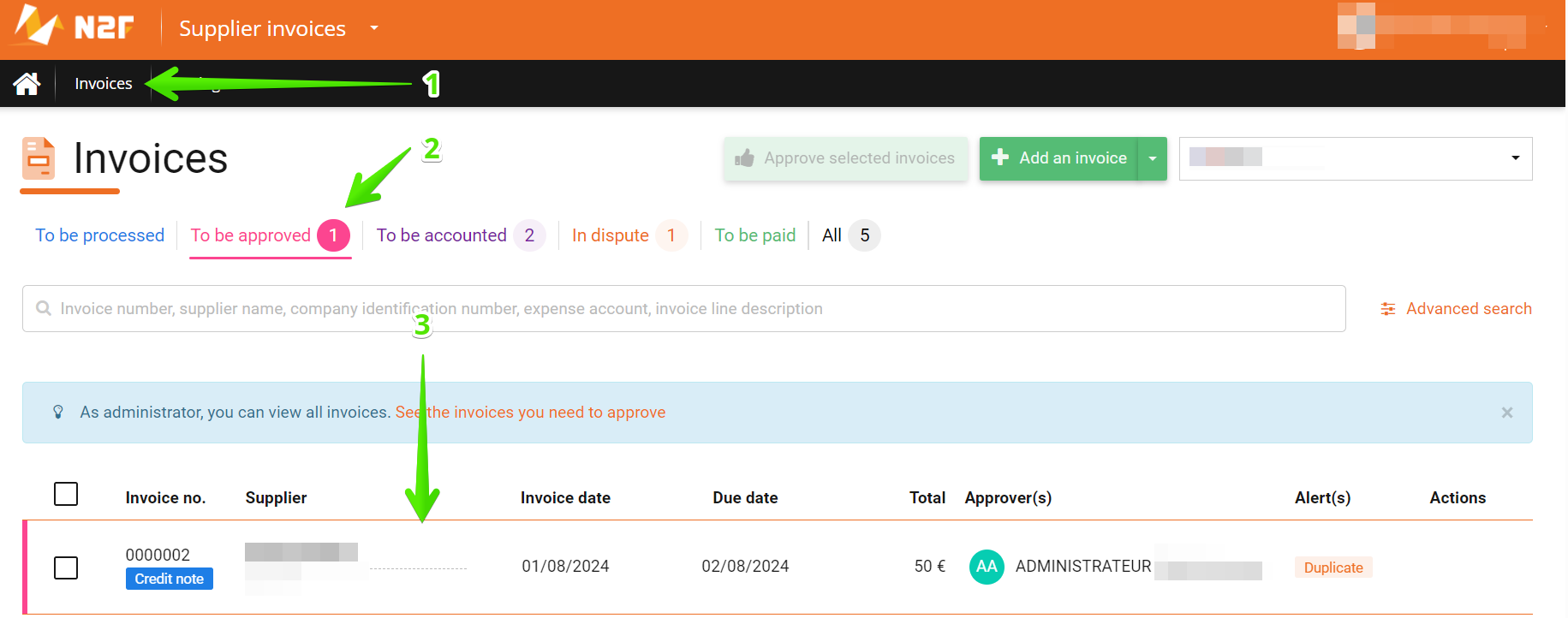
Once you have checked the invoice details, you can approve it by clicking on the option below:

If the invoice is not acceptable or justified, you can refuse it.
To do this, please click on the ‘Dispute’ button below:

You can either:
- definitively refuse the invoice (1). The invoice will be marked as “refused” and will go directly to the ‘All’ menu.
- If the invoice needs to be temporarily delayed, you can select the ‘Temporary dispute’ option (2). The validation circuit will be suspended, and the invoice will be filed in the ‘In dispute’ menu.
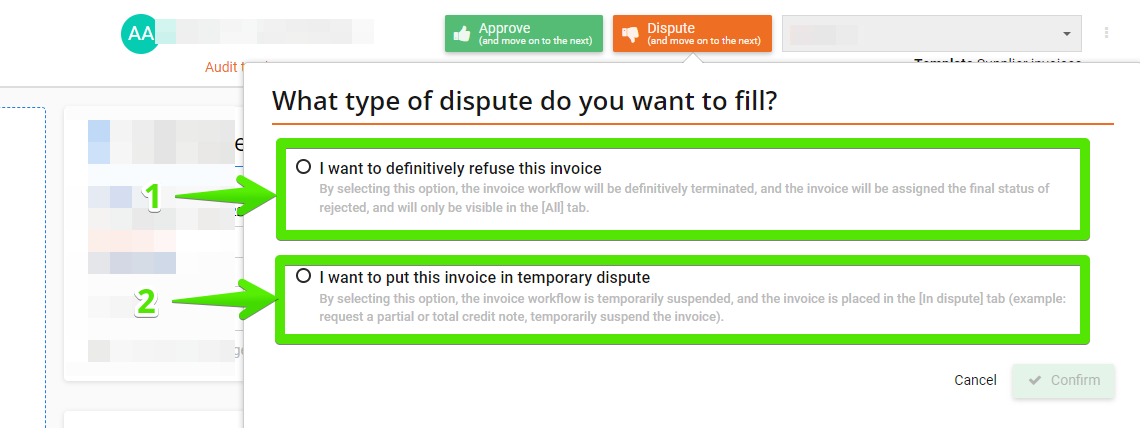
In the case of a temporary or permanent refusal, you will need to enter a reason. The field to be completed is highlighted in red:

An e-mail will be sent to the employee who created the invoice to inform him:
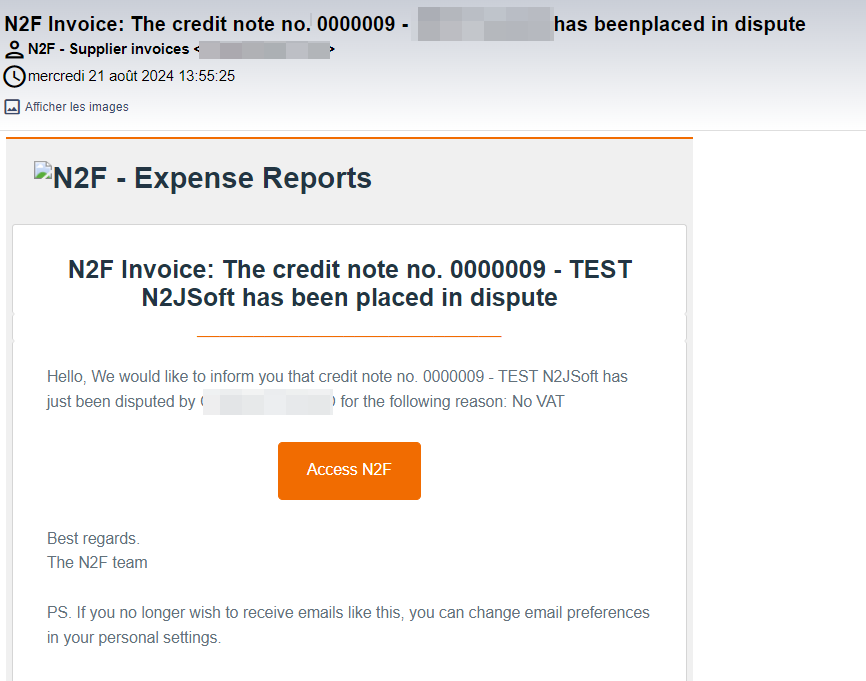
In the case of a temporary refusal, you can find the note in the ‘In dispute’ menu and update the status according to the final decision:
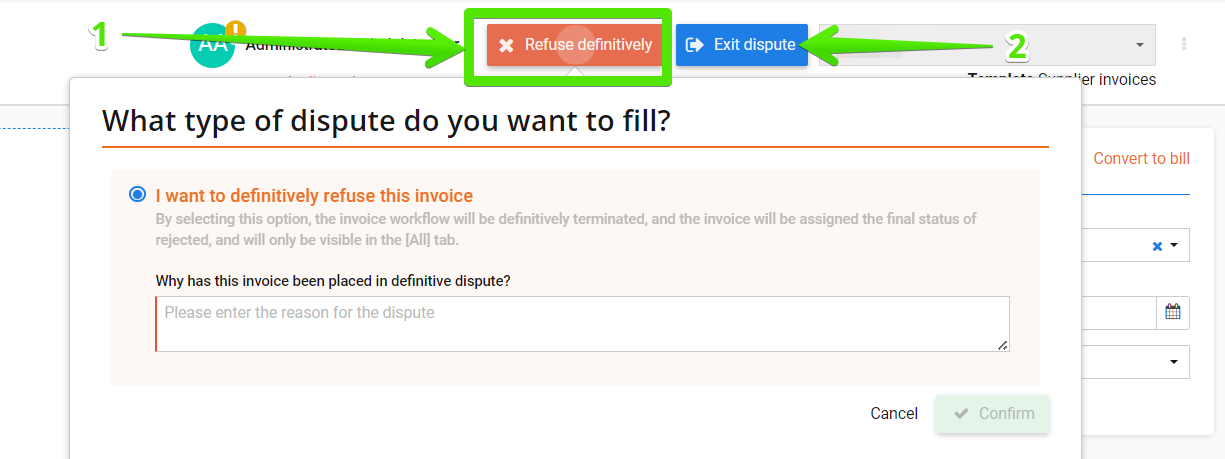
You can ‘Definitively refuse’ the invoice (1) or choose to ‘Exit dispute’ (2).
In both cases, you will need to enter the reason for the update, and the invoice will then be automatically classified as ‘Refused” or sent to the next stage of the validation workflow.
Nb: Depending on your rights, you may not be able to definitively refuse an invoice, place it temporary or exit dispute. In this case, you should contact your administrator.
If you have any questions, you can contact our support team on the following details: