
Version: Business Enterprise Advanced
Platform: Web Android IOS
Role: User Manager Accountant Administrator
To add an invoice to N2F, you need to log on to the web interface. Go to the ‘Invoices’ menu and click on ‘Add an invoice’.
If you have access to several entities, choose the right one:

You will then be able to complete the necessary fields. The fields marked in red are required. You can then download your document by selecting the option:

In the top right-hand corner, you can fill in the invoice header.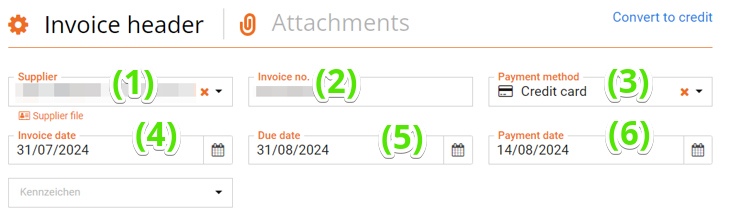
1. The supplier** (can be filled in automatically if the SIRET has been correctly recognised by the OCR scan).
**If the supplier is not known in the database, you must create it.
When the supplier is selected, a window will ask you to automatically pre-fill the accounts relating to this supplier.
2. Enter the invoice number
If there is a duplicate invoice number, you will see an alert : 
3. The default payment method is bank transfer, but this can be changed manually.
4. Enter the invoice issue date (can be recognised by the scan)
5. The due date will be indicated automatically based on the information entered in the Supplier file.
6. Enter the invoice payment date. This information is optional but will enable you to track the payment of the invoice at a later date.
If necessary, you can transform your entry into a credit note by clicking on the option:

The total amounts in the header will be completed as the invoice lines are filled in.
You can then insert the invoice lines:
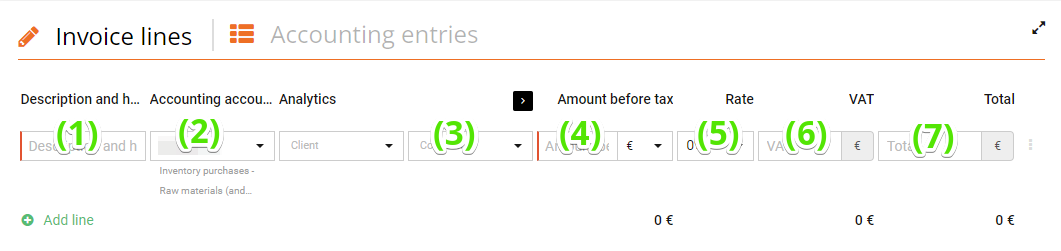
1. Fill in the title of the first line (nature of the service); this is a manual entry and the description can be used when exporting.
2. Enter the accounting account for this line.
3. Enter the analytical data if it is necessary.
4. Enter the amount of the line
5. Choose / change the VAT rate for the line
6. Check the VAT and VAT-inclusive amounts that have been calculated.
To add a line, click on the ‘Add a line’ option.
Once all the lines have been completed, you can save and submit the invoice. The invoice will be sent in a validation workflow that you can configure.
By clicking on the little arrow to the right of the button, you can simply save your entry. The invoice will remain ‘to be processed’.

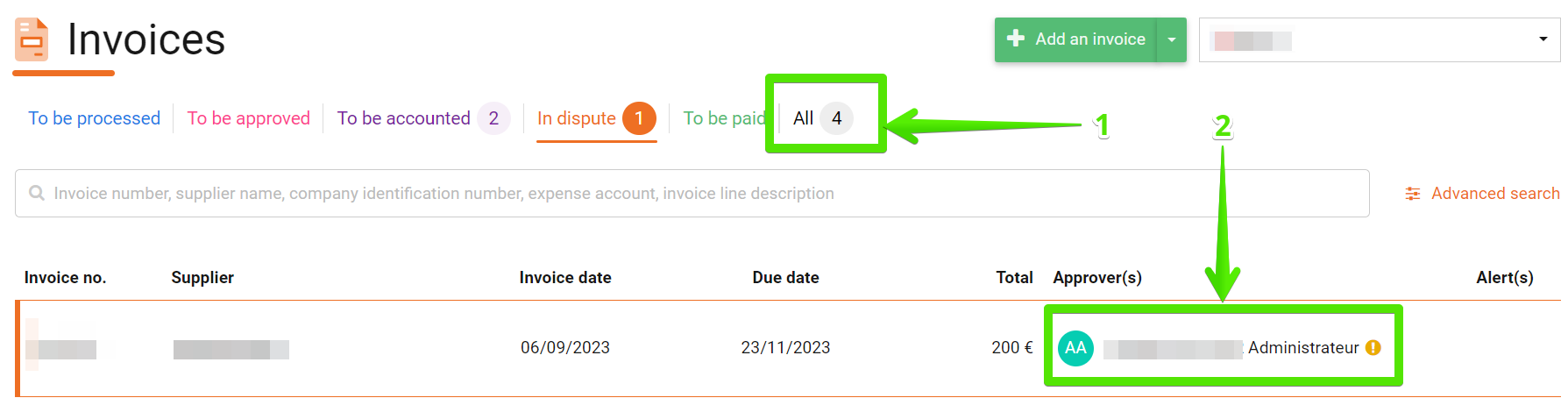
You can view the progress of the validation process at any time:
If you have any problems or questions,
Feel free to contact our support team using the following details: